
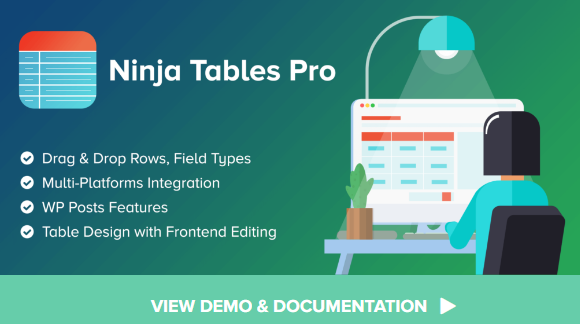
Ninja Tables Pro
Original price was: $59.00.$10.00Current price is: $10.00.
Ninja Tables Pro
Version5.0.19
Developer NameWPManageNinja
Type Nameplugin
Release DateSeptember 25, 2019
License TypeGPL
Last UpdateJune 1, 2025
Description
Here’s a step-by-step guide to setting up Ninja Tables Pro on your WordPress site
Ninja Tables Pro is a powerful WordPress plugin designed to help you create, manage, and display tables with ease. While the free version offers basic functionalities, the Pro version unlocks advanced features that enhance customization, integration, and performance. Starter Premium Membership
🔧 Key Features of Ninja Tables Pro
| Feature | Free Version | Pro Version |
|---|---|---|
| Drag & Drop Table Builder | ✅ Available | ✅ Enhanced with advanced options |
| Responsive Tables | ✅ Yes | ✅ Yes |
| Import/Export (CSV/JSON) | ✅ Yes | ✅ Yes |
| Google Sheets Integration | ❌ Not available | ✅ Auto-sync with Google Sheets |
| WooCommerce Integration | ❌ Not available | ✅ Display WooCommerce products in tables |
| Advanced Styling Options | ❌ Limited | ✅ Unlimited colors, hover effects, custom CSS |
| Conditional Formatting | ❌ Not available | ✅ Yes |
| Cell Merging & Alignment | ❌ Not available | ✅ Yes |
| Shortcodes in Cells | ❌ Not available | ✅ Yes |
| Advanced Filtering & Sorting | ❌ Basic | ✅ Advanced options |
| Dedicated Support | ❌ Community support | ✅ Priority support |
💰 Pricing Plans
Ninja Tables Pro offers both annual and lifetime pricing options
Annual Plans:
-
Single Site License: $79/year
-
Agency License (up to 20 sites): $129/year
-
Unlimited Sites License: $299/year
Lifetime Plans:
-
Single Site License: $309 (one-time payment)
-
Agency License (up to 20 sites): $499 (one-time payment)
-
Unlimited Sites License: $749 (one-time payment)
✅ Pros & ❌ Cons
Pros:
-
User-friendly drag-and-drop interface
-
Seamless integration with Google Sheets and WooCommerce
-
Extensive customization options for table design
-
Optimized for performance, ensuring fast loading times
-
SEO-friendly tables that enhance content visibility
Cons:
-
Requires the free version to be installed for the Pro version to function
-
Limited import/export options compared to some competitors
-
Advanced features may have a learning curve for beginners
🛒 Where to Purchase
You can purchase Ninja Tables Pro directly from the They often offer discounts and promotions, so it’s worth checking for the latest deals.
To hire a freelancer directly on a marketplace like Freelancer , find the freelancer’s profile and use the “Hire Me” form to send a private message with project details and payment terms.
Directly hiring a freelancer | Project
Go to : https://dillpo.com/s/1ABE4DE1511FEFFA6CB4
Freelancer website : dillpo.com
Freelancer website : Fiverr.com
Freelancer website : Upwork.com
Freelancer website : Freelancer.com
Wpwar All Membership Package
✅ 1. Install Ninja Tables Pro
Step 1: Install Free Version (Required)
-
Go to
Plugins→Add New -
Search for “Ninja Tables”
-
Click Install Now and then Activate
Step 2: Install the Pro Addon
-
Download the Ninja Tables Pro plugin from your account on the wpmanageninja.com website
-
Go to
Plugins→Add New→Upload Plugin -
Upload the
.zipfile and click Install Now, then Activate
Step 3: Activate License
-
Go to
Ninja Tables→Settings -
Enter your license key (found in your WPManageNinja account)
-
Click Activate
✅ 2. Create a New Table
-
Go to
Ninja Tables→ All Tables → Click Add Table -
Enter a Table Name, Description (optional), then click Add
✅ 3. Add Data to Table
You have 3 options:
A. Manual Table
-
Use the visual editor to add columns and rows manually.
-
Click + Add Column to define headers
-
Click + Add Data to input row data
B. Connect to Google Sheets
-
Connect your Google account and select a sheet to auto-sync
C. WP Posts / Custom Post Types
-
Automatically create tables from WordPress post types or WooCommerce products
✅ 4. Customize Table Design
-
Go to the Table Design tab:
-
Choose layout: Table, Card, or List
-
Customize colors, borders, padding
-
Enable/disable sorting, filtering, pagination, search, etc.
-
✅ 5. Add the Table to a Page or Post
-
Use the Shortcode shown at the top of the table settings (e.g.
[ninja_table id=“123”]) -
Paste the shortcode into any:
-
Page
-
Post
-
Widget
-
Elementor or any page builder text element
-
✅ 6. Advanced Features (Pro Only)
-
Conditional Formatting
-
Front-end Table Editing
-
Connect with WooCommerce
-
Transform Tables into Charts (Chart.js integration)
-
Export/Import (CSV/JSON)
-
Role-based table editing/viewing
If you tell me what kind of table you’re trying to build (e.g. pricing table, WooCommerce products, user-submitted data, etc.), I can give you a more tailored setup.
Would you like that?
Reviews (0)
Only logged in customers who have purchased this product may leave a review.
Related products







Reviews
There are no reviews yet.